Descarga y Activación
Antes de usar nEditor por primera vez, debe descargar los archivos del editor utilizando nEditor - downloader y activar su licencia de Discord.
1. Obtaining Your License Credentials
Immediately after completing your purchase in the official shop (shop.neditor.eu) or pledging on Patreon, our Discord bot automatically creates a dedicated private thread on our official Discord server:
In this thread, you will receive:
- Your Discord ID – the unique numerical identifier of your Discord account .
- License Key (License key [A]) – your unique license key formatted as
NED-XXXXX-XXXXX-XXXXX-XXXXX. - Downloader Link – the official launcher and updater executable nEditor-downloader.exe.
Retrieve Your Key Anytime
If you ever forget or misplace your key, you can quickly retrieve it using the /neditor key command on our Discord server. You can check your current tier and subscription details with /neditor status.
2. Running nEditor - downloader
The nEditor - downloader application is the official installer and updater for nEditor on Windows. It manages secure downloads, verifies file integrity, and keeps your editor up to date.
- Download the
nEditor-downloader.exefile from the link provided by the bot. - Place the file in a convenient folder on your drive and run it (no system installation required).
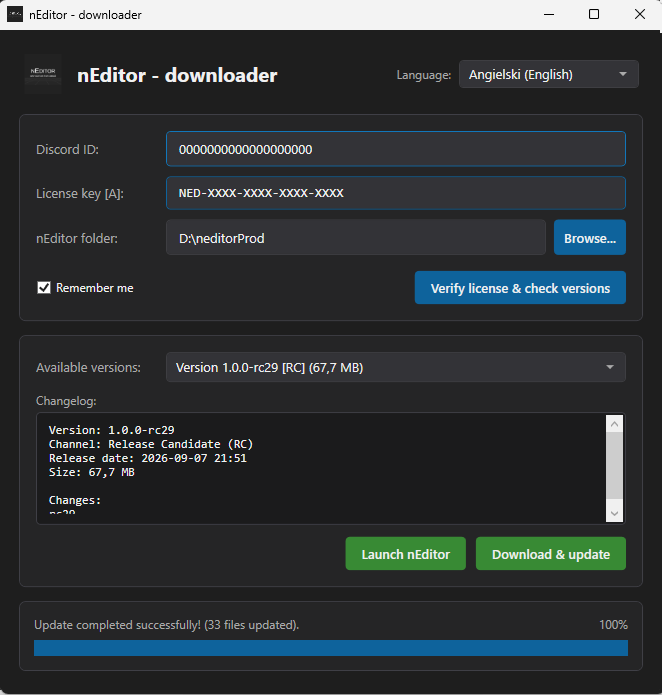
- In the top-right corner, you can switch your preferred interface language (English or Polski).
3. Entering Credentials & License Verification
In the upper section of the window, fill in the following fields:
| Field | Description |
|---|---|
| Discord ID | Paste your numerical Discord account ID . |
| License key [A] | Paste your license key (NED-...). |
| nEditor folder | Choose the destination folder where nEditor should be installed (e.g. D:\nEditorProd). Click Browse... to select or create a folder. |
| Remember me | Check this box so the application remembers your credentials and directory for future updates. |
Once the fields are filled, click the blue button:
The application will connect to the licensing server, validate your credentials, and unlock the version selection list.
Machine Lock
Your license is securely bound to the PC where it was first activated. If you upgrade your hardware or reinstall Windows, you can reset this machine binding at any time by typing /neditor unlock on our Discord server.
4. Selecting Version & Downloading
Once your license is verified:
- In the Available versions dropdown, choose the version you wish to install:
- Stable versions – recommended for general scenery and map creation.
- Release Candidate (
[RC]) versions – testing builds containing the latest features, accessible to supporters with active beta access. - In the Changelog section, review the release notes, date, and download package size.
- Click the green button:
The application will download the editor files and extract them into your chosen folder. Real-time progress is shown on the progress bar at the bottom:
5. Launching nEditor
After the update finishes, you can start the editor in two ways:
- By clicking the green Launch nEditor button directly inside the downloader.
- By launching the executable
nEditor.exelocated inside your chosen installation directory.
On the first launch, the editor will ask you to select your OMSI 2 installation directory and perform initial asset indexing. See the next chapter for full instructions: Editor Initialization.